Table of Contents
Migrate a Video from OneDrive to YouTube
When you connect a YouTube channel to a project, only videos recorded after that point are uploaded to YouTube. Older videos stay on OneDrive / SharePoint, where shareable links expire after 30 days.
The Migrate Video action moves one of those older videos across to your project's video host, so the work item keeps a permanent link.
When to use this
Use Migrate Video when all of the following are true:
- A project's video host has been changed to YouTube
- An older work item still points at a OneDrive / SharePoint video
- You want that video's link to stop expiring
Note: This migrates one video at a time — there is no bulk or whole-project migration. While a migration is running, the action is unavailable on every other row. It is designed for topping up the occasional older video, not for moving a large backlog.
Prerequisites
- You must be the owner of the shave, or a YakShaver admin
- The project must already have a YouTube channel connected
- The video must currently be hosted on OneDrive / SharePoint — migration only runs in this direction
⚠️ Warning: This action cannot be undone. YouTube does not allow YakShaver to download a video back off the channel, so a video cannot be migrated back to OneDrive / SharePoint.
⚠️ Important: Migration uses the same YouTube upload capacity as new recordings. If the upload limit is reached, uploads may be delayed.
Step-by-Step Instructions
Note: The action is only available from the project view. Opening the same shave from My Shaves will show Migrate Video greyed out.
- Log in to the YakShaver Portal and open the project from Projects
- Check the project's Video Host is set to YouTube
 Figure: The project's Video Host must be set to YouTube before migrating
 - Select the Shaves tab, then find the work item whose video is still on OneDrive / SharePoint — these rows show a blue OneDrive icon in the corner of the video thumbnail
- Select the ⋮ (More actions) button at the end of that row
- Choose Migrate Video
 Figure: The "Migrate Video" action, available on rows still hosted on OneDrive / SharePoint
 - Confirm in the dialog — it names the source and destination hosts, and warns that the action cannot be undone
 Figure: Confirming the migration from OneDrive / SharePoint to YouTube
 - Wait for the migration to finish. A progress notification is shown while the video uploads, and the list refreshes automatically
What happens next?
- The video is uploaded to your project's YouTube channel as an unlisted video
- The work item is updated to point at the new YouTube link
- The original issue description is updated, replacing the old video link with the new one
- The original OneDrive / SharePoint copy is not deleted
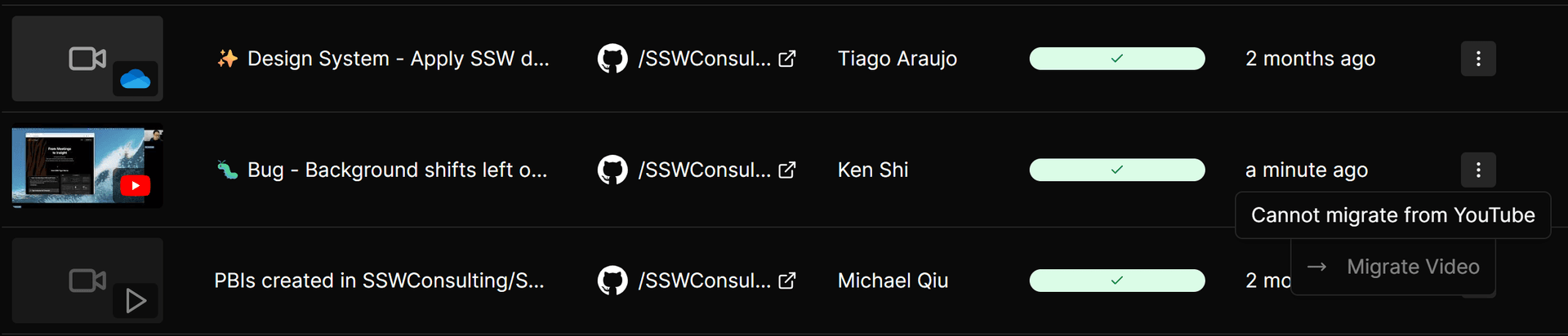 Figure: After migrating, the thumbnail shows the YouTube video and the action is no longer available
To verify, open the work item and check that "Watch the video" now points at a youtube.com link.
Note: If the issue description still shows the old link, the video has still migrated successfully — updating the description is a separate step that can fail on its own. Do not retry the migration; it will be blocked because the video is already on YouTube. Contact support instead.
Why is "Migrate Video" greyed out?
Hover over the action to see the reason:
- "Only the owner or an admin can migrate this shave" — ask the owner or an admin to run it
- "Open from the project view to migrate" — open the shave from Projects → Shaves
- "Project is already using SharePoint" — connect a YouTube channel first
- "Cannot migrate from YouTube" — already migrated
- "Another migration is in progress" — wait for it to finish